


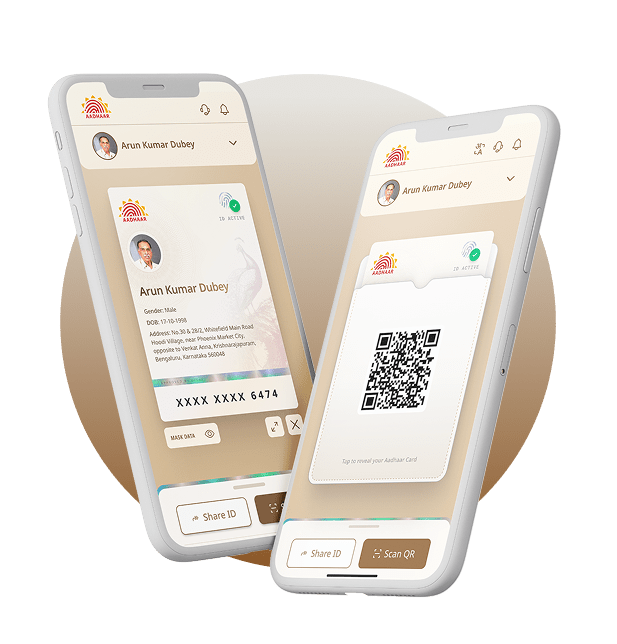





Download Your e-Aadhaar Instantly
Get your digitally signed, password-protected Aadhaar PDF on your phone or computer in just 2 minutes. Secure and valid everywhere.
Download Now ➔
Complete Guide to e-Aadhaar & Download Process
Aaj ke digital yug mein, Aadhaar Card har Bhartiya nagarik ke liye sabse zaroori pehchaan patra (Identity Proof) ban gaya hai. Chahe bank account khulwana ho, SIM card lena ho, ya kisi sarkari yojana ka labh uthana ho—Aadhaar har jagah anivarya hai. Lekin kya aap jante hain ki aapko hamesha physical card sath rakhne ki zarurat nahi hai? Aap e-Aadhaar ka istemal kar sakte hain.
What is e-Aadhaar? (e-Aadhaar Kya Hai?): Ye aapke physical Aadhaar card ki ek password-protected electronic copy hai, jise UIDAI ke competent authority dwara digitally sign kiya jata hai. Aadhaar Act ke mutabiq, e-Aadhaar physical copy ke barabar hi valid mana jata hai.
Aadhaar Card Download Kaise Karein? (Online Process)
Agar aapka Aadhaar card kho gaya hai ya aapke paas physical copy nahi hai, to ghabrayein nahi. Aap niche diye gaye aasaan steps ko follow karke 2 minute mein apna e-Aadhaar PDF download kar sakte hain.
- Official Website: Upar diye gaye orange color ke “Download Now” button par click karein.
- Enter Details: Yahan aapke paas 3 option honge – Aadhaar Number, Enrolment ID (EID), ya Virtual ID (VID). Apna 12-digit Aadhaar number dalein.
- Captcha Verification: Screen par dikh raha security code (Captcha) dhyan se bharein.
- OTP Verification: ‘Send OTP’ button dabayein. Aapke registered mobile number par ek 6-digit ka OTP aayega.
- Verify & Download: OTP enter karein aur ‘Verify & Download’ par click karein. Aapka e-Aadhaar PDF format mein download ho jayega.
e-Aadhaar PDF Password Kya Hota Hai?
Bahut se log Aadhaar download to kar lete hain lekin PDF khul nahi pati kyunki wo password-protected hoti hai. Iska password bahut simple hota hai.
Example 1:
Naam: SURESH KUMAR | Janam Saal: 1990
👉 Password: SURE1990
Example 2:
Naam: RIA (Sirf 3 akshar hain) | Janam Saal: 2002
👉 Password: RIA2002
Difference: e-Aadhaar vs Aadhaar PVC Card
| Feature | e-Aadhaar (Digital) | Aadhaar PVC Card |
|---|---|---|
| Format | PDF File (Phone/PC mein) | Hard Plastic Card |
| Cost | Bilkul Free | ₹50 (Speed Post) |
| Delivery | Instant Download | 5-15 Days (Home Delivery) |
Frequently Asked Questions (FAQs)
Lost Your Aadhaar? Retrieve it Instantly!
Forgot your Aadhaar Number (UID) or Enrolment ID (EID)? Use your registered mobile number to get it back via SMS in seconds.
Retrieve UID / EID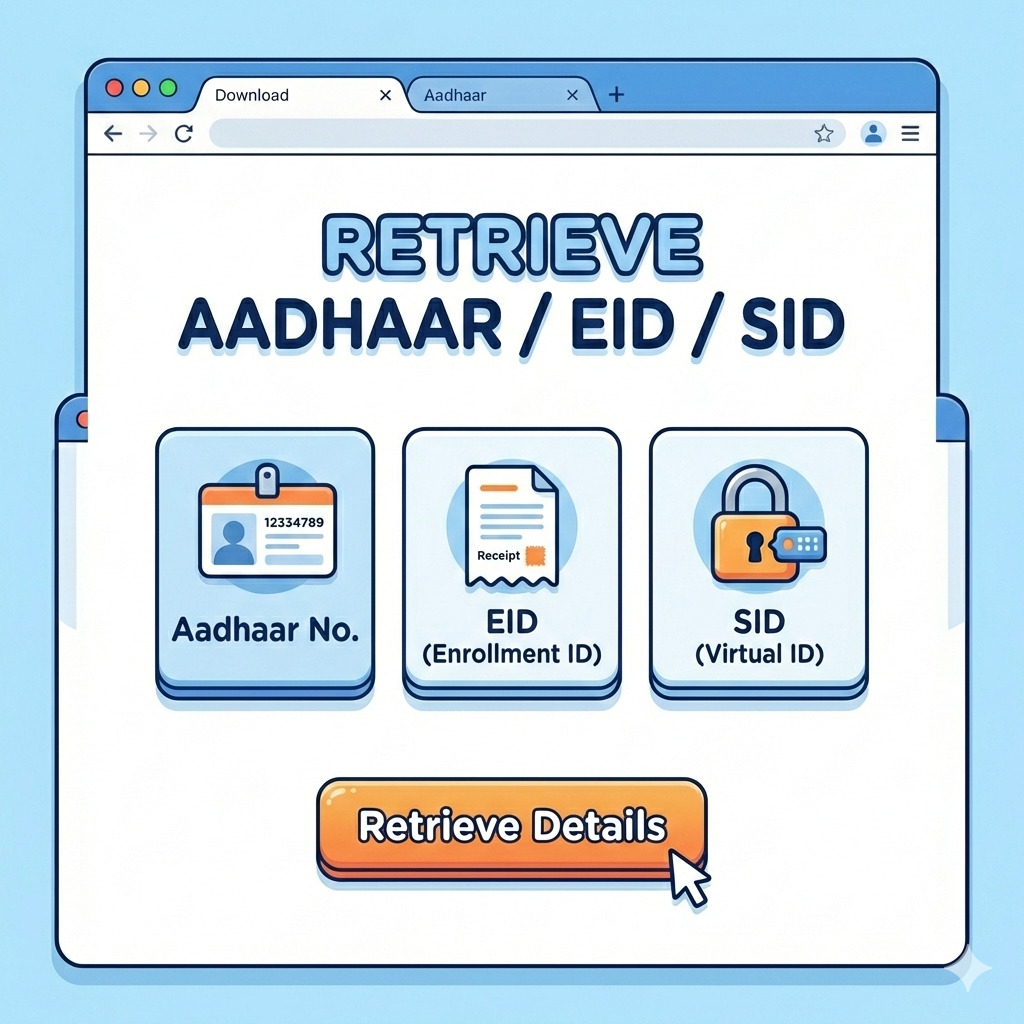
How to Retrieve Lost Aadhaar Number (UID) or Enrolment ID (EID)
Have you lost your physical Aadhaar card and cannot remember your 12-digit Aadhaar number? Or perhaps you have applied for a new Aadhaar card but lost the acknowledgement slip containing the Enrolment ID (EID)?
Do not worry. The “Retrieve Aadhaar number/EID/SID” service allows you to recover these details online instantly. This feature is a lifesaver for those who have misplaced their documents and need to download their e-Aadhaar urgent. By using this facility, your lost Aadhaar number or EID is sent directly to your registered mobile number.
Difference Between UID and EID
| Term | Full Form | Description |
|---|---|---|
| UID | Unique ID | This is your final 12-digit Aadhaar Number. Select this if you already had a card. |
| EID | Enrolment ID | This is the 28-digit number from your acknowledgement slip (for new applications). |
Step-by-Step Process to Retrieve Lost Aadhaar (UID)
- Visit the Official Portal Click on the “Retrieve UID / EID” button above to open the official page.
- Select Retrieval Option Choose “Aadhaar Number” to find your main ID or “Enrolment ID” if you are tracking a new application.
- Enter Personal Details Enter your Full Name exactly as it is printed on your Aadhaar card.
- Enter Contact Info & Captcha Enter your Registered Mobile Number or Email ID, fill the Captcha, and click “Send OTP”.
- Get SMS After OTP verification, your Aadhaar Number (UID) or EID will be sent to your mobile via SMS.
Frequently Asked Questions (FAQs)
Q: Can I retrieve my Aadhaar if I don’t have my mobile number?
Ans: No, the online facility works strictly via OTP. If your mobile is not linked, you must visit an Aadhaar Enrollment Center with your identity proof.
Q: Is there any fee for this service?
Ans: No, the “Retrieve Aadhaar/EID” service is completely free of cost on the myAadhaar portal.
Verify Mobile & Email
Not sure which mobile number is linked to your Aadhaar? Verify it instantly to ensure you receive OTPs for all government services.
Verify Now ➔
How to Verify Mobile Number & Email Linked with Aadhaar
In today’s digital India, your Registered Mobile Number is the key to accessing almost all Aadhaar services. Whether you want to download your e-Aadhaar, update your address online, or verify your ITR, the OTP (One Time Password) is sent to this linked number.
However, people often change their SIM cards or forget which mobile number they gave at the time of enrollment years ago. The “Verify Email / Mobile” service on the myAadhaar portal solves this confusion. It allows you to check if the mobile number or email ID you currently possess is the one linked to your Aadhaar database.
Instead, YOU have to enter a mobile number, and the system will tell you if it matches the records or not. It is a verification tool, not a search tool.
Step-by-Step Process to Verify Mobile Number
Follow this simple procedure to confirm your linked contact details:
- Access the Service: Click on the green “Verify Now” button above.
- Select Verification Type: You will see two options: “Verify Mobile Number” and “Verify Email Address”. Select the one you want to check.
- Enter Details: First, enter your 12-digit Aadhaar Number. Then, enter the Mobile Number (or Email) that you think is linked.
- Security Check: Enter the Captcha code exactly as shown in the image box.
- Send OTP: Click on the “Send OTP” button.
- Check the Result: The system will display a success or error message based on your input (explained below).
Understanding the Result Messages
After submitting, you will see one of these two messages. Here is what they mean:
Scenario 1: Match Found (Success)
✅ “The mobile number you have entered is already verified with our records.”
Meaning: Congratulations! The mobile number you typed IS the one linked to your Aadhaar. You can receive OTPs on this number.
Scenario 2: No Match (Failure)
❌ “The mobile number you have entered does not match with our records.”
Meaning: The number you typed is NOT linked. Either you linked a different family member’s number, or an old number that you have lost.
Why is this Verification Important?
1. Fraud Prevention: Ensuring that no unknown mobile number or email is linked to your ID protects your biometric and demographic data.
2. Banking & Services: To link Aadhaar with a bank account or PAN card, the OTP validation is mandatory. Verifying ensures you are using the correct SIM.
3. Updates: You cannot update your address or download Aadhaar online if you don’t know which number receives the OTP.
Frequently Asked Questions (FAQs)
Q: The system says “Record not found”. What should I do?
Ans: This means the mobile number you are entering is incorrect. Try entering mobile numbers of your family members. If none match, you must visit an Aadhaar Seva Kendra to check or update your number.
Q: Can I update my mobile number using this service?
Ans: No. This service is only for verification. To update or change your mobile number, biometric authentication is required, which can only be done offline at a center.
Report Death & Deactivate Aadhaar
Secure the identity of your deceased family member. Officially report the death to UIDAI to prevent misuse of documents.
Report Now
How to Report Death of a Family Member for Aadhaar Deactivation
The Aadhaar card is a unique identity proof that remains valid for a lifetime. However, in the unfortunate event of a family member’s demise, it is the responsibility of the legal heir or guardian to inform the Unique Identification Authority of India (UIDAI).
The “Report death of a family member” service allows you to officially flag an Aadhaar number for deactivation. This is a crucial step to ensure that the deceased person’s identity documents are not misused for financial fraud, illegal SIM card issuance, or identity theft.
Why is Deactivating Aadhaar Important?
Many people often overlook this step, but keeping a deceased person’s Aadhaar active can lead to several complications:
- Prevent Misuse: Scammers often look for dormant identities to open fake bank accounts or take loans.
- Subsidies & Benefits: To prevent the continued transfer of government benefits (like pensions) to a deceased person, which can later lead to legal recovery issues.
- Closure of Records: It helps in closing other linked official documents like PAN Card and Voter ID systematically.
Procedure to Report Death Online
UIDAI has simplified the process by allowing family members to initiate this request via the myAadhaar portal. Follow these steps:
- Login to Portal The reporting family member (Applicant) must login to the myAadhaar portal using their Own Aadhaar Number and OTP. You cannot login using the deceased person’s Aadhaar.
- Select the Service On the dashboard, locate and click on the “Report death of a family member” card.
- Enter Details of Deceased Enter the 12-digit Aadhaar Number of the deceased family member. You may also need to provide their Name and Date of Birth as per records.
- Upload Document Upload a clear scanned copy (PDF/JPG) of the Death Certificate. Ensure the file size is within the permissible limit (usually 2MB).
- Review & Submit Verify all the details entered. Once submitted, you will receive a Service Request Number (SRN) to track the status.
What Happens Next? (Verification)
Reporting the death online does not instantly deactivate the Aadhaar. The request goes through a verification process:
1. Registrar Verification: The details are cross-verified with the birth and death registration records.
2. Deactivation: Once verified, the UIDAI will permanently deactivate the Aadhaar number of the deceased.
3. Confirmation: You can check the status using the “Check deceased Aadhaar deactivation status” service on the same portal.
Frequently Asked Questions (FAQs)
Q: Can anyone report the death?
Ans: Usually, only immediate family members (spouse, children, parents) whose mobile numbers are linked or who can prove the relationship can initiate this request.
Q: Is it mandatory to deactivate Aadhaar after death?
Ans: While there is no strict penalty currently, it is highly recommended for safety and to close the financial and legal footprint of the deceased.
Q: Can I reactivate the Aadhaar later if reported by mistake?
Ans: No. Once an Aadhaar is marked as “Deceased” and deactivated after proper verification, it cannot be reactivated. Please use this service carefully.
Free Document Update
Is your Aadhaar 10+ years old? Upload Proof of Identity & Address documents online for FREE till 14/06/2026.
Update Now
Document Update: Upload PoI and PoA Online
Has it been more than 10 years since you got your Aadhaar card made? Have you updated your documents recently? If not, the Unique Identification Authority of India (UIDAI) strongly recommends that you update your Proof of Identity (PoI) and Proof of Address (PoA) documents.
Keeping your documents updated ensures that your demographic information (Name, Address, DOB) in the Aadhaar database is accurate and up-to-date. This helps in seamless verification for banking, passport services, and government subsidies.
(Note: If you visit an offline Aadhaar Center, you will have to pay ₹50.)
Which Documents do you need to upload?
You need to upload one document for Identity and one for Address. Common valid documents include:
1. Proof of Identity (PoI)
To verify your Name and Photo.
- PAN Card / e-PAN
- Driving License
- Passport
- Voter ID
- Ration Card (with Photo)
- Mark Sheet / School Certificate
2. Proof of Address (PoA)
To verify your Current Address.
- Electricity Bill (< 3 months)
- Water Bill (< 3 months)
- Gas Connection Bill
- Bank Passbook / Statement
- Passport (Address page)
- Voter ID
Step-by-Step Process to Update Documents Online
Take advantage of the free window and update your documents from home using these steps:
- Login to myAadhaar Click the “Update Now” button above and login using your Aadhaar Number + OTP.
- Select “Document Update” Click on the “Document Update” card. Review your current details (Name, Address, DOB).
- Upload Files Scan your PoI and PoA documents. Supported formats are JPEG, PNG, or PDF (Size < 2MB).
- Submit Since the service is free, skip the payment. Click submit. You will get a Service Request Number (SRN).
Online vs Offline Update Comparison
| Feature | Online (myAadhaar Portal) | Offline (Aadhaar Center) |
|---|---|---|
| Cost | FREE (till 14/06/2026) | ₹50 (Service Charge) |
| Convenience | From Home (24×7) | Visit & Wait in Queue |
| Documents | Self Scan & Upload | Originals Verified by Operator |
Frequently Asked Questions (FAQs)
Q: My address has changed. Can I use this service?
Ans: No. This service is ONLY to upload documents for existing details. To change your address, use the “Address Update” service.
Q: What happens if I don’t update?
Ans: Your Aadhaar might get suspended or face difficulties in KYC authentication for banks or ration services.
Generate Virtual ID (VID)
Protect your privacy! Create a temporary 16-digit Virtual ID to use instead of your Aadhaar Number for authentication.
Generate VID
VID Generator: Create Virtual ID to Hide Aadhaar Number
Are you worried about sharing your 12-digit Aadhaar number everywhere? Do you want to protect your privacy while performing e-KYC? The Virtual ID (VID) is the solution.
The “VID Generator” service allows you to create a temporary, revocable 16-digit random number mapped to your Aadhaar number. It can be used in lieu of your Aadhaar number for authentication services. This ensures your actual Aadhaar number remains hidden from the service provider.
Difference: Aadhaar Number vs Virtual ID (VID)
| Feature | Aadhaar Number (UID) | Virtual ID (VID) |
|---|---|---|
| Length | 12 Digits (Permanent) | 16 Digits (Temporary) |
| Validity | Lifetime valid | Valid until you generate a new one |
| Security | Directly linked to biometric data | Masks the actual Aadhaar number |
How to Generate or Retrieve VID Online
You can generate a new VID or retrieve an existing one using the myAadhaar portal. Follow these steps:
- Login to Portal Visit the myAadhaar dashboard by clicking the “Generate VID” button above.
- Select “VID Generator” Click on the “VID Generator” icon from the services menu.
-
Choose Option
You will see two options:
1. Generate New VID: If you want to create a fresh 16-digit number.
2. Retrieve Existing VID: If you already generated one but forgot it. - Confirm & Receive Select your choice. Your 16-digit Virtual ID will be sent immediately to your Registered Mobile Number via SMS.
Frequently Asked Questions (FAQs)
Q: Is VID accepted everywhere?
Ans: Yes, as per government regulations, all agencies (Banks, Telecom, Govt) must accept VID for authentication.
Q: What happens if I generate a new VID?
Ans: The moment you generate a new VID, your old VID gets automatically cancelled. You can only have one active VID at a time.
Q: Does VID expire?
Ans: No, a VID does not expire by itself. It remains valid until you choose to generate a new one.
Lock / Unlock Aadhaar
Worried about identity theft? Temporarily Lock your Biometrics or Aadhaar Number instantly for maximum security.
Secure Now
Lock / Unlock Aadhaar: Secure Your Biometrics Instantly
Security is a major concern for Aadhaar holders. What if someone gets hold of your Aadhaar number and tries to misuse it? To prevent unauthorized authentication, UIDAI provides a powerful feature: Lock / Unlock Aadhaar.
This service allows you to temporarily “Lock” your UID (Aadhaar Number). Once locked, no one (not even you) can perform authentication using the Aadhaar number. It acts as a digital shield against identity theft. You can “Unlock” it whenever you need to use it.
Once your Aadhaar is locked, you CANNOT use your Aadhaar number to unlock it (because the number itself is locked). You will compulsorily need a 16-digit Virtual ID (VID) to perform the Unlock process.
Difference: Aadhaar Lock vs Biometric Lock
Many people confuse these two services. Here is the difference:
| Feature | UID Lock (Aadhaar Lock) | Biometric Lock |
|---|---|---|
| What it blocks? | Blocks ALL authentication (Demographic, Biometric, OTP). | Blocks ONLY Fingerprint and Iris scan. OTP still works. |
| How to use when locked? | You must use Virtual ID (VID). | You must temporarily “Unlock” biometrics to use fingerprint/iris. |
| Security Level | Highest (Total Lock) | Medium (Protects Biometrics only) |
Step-by-Step Guide to LOCK Aadhaar
- Generate VID First As mentioned, ensure you have a valid VID. If not, use the “VID Generator” service first.
- Open Lock Service Click the “Secure Now” button above and select the “Lock UID” option.
- Enter Details Enter your 12-digit Aadhaar Number, Full Name, and Pin Code.
- Verify OTP Enter the security captcha and click “Send OTP”. Enter the OTP received on your mobile.
- Confirmation Your Aadhaar Number is now LOCKED. You will not be able to perform authentication using the UID anymore.
Step-by-Step Guide to UNLOCK Aadhaar
- Select “Unlock UID” Go to the same service page and select the “Unlock UID” tab.
- Enter VID (Not Aadhaar Number) Here, you CANNOT enter your Aadhaar number. You must enter your 16-digit Virtual ID (VID).
- Verify & Unlock Enter the Captcha and OTP. Once verified, your Aadhaar number will be active again.
Frequently Asked Questions (FAQs)
Q: Can I download e-Aadhaar if my UID is locked?
Ans: Yes, but you will have to use your Virtual ID (VID) to download it, as the Aadhaar number will not be accepted by the system.
Q: I forgot my VID and my Aadhaar is locked. What do I do?
Ans: You can use the “Retrieve VID” service via SMS. Send an SMS: RVID <Last 4 digits of Aadhaar> to 1947 from your registered mobile number.
Bank Seeding Status
Are you receiving government subsidies? Check if your Aadhaar is successfully linked and mapped with your bank account for Direct Benefit Transfer (DBT).
Check Status
Bank Seeding Status: Check Aadhaar-Bank Linking for DBT
Many government schemes in India transfer money directly to beneficiaries’ bank accounts using the Direct Benefit Transfer (DBT) system. This money is sent using the “Aadhaar Payment Bridge” (APB).
For this to work, simply having a bank account is not enough. Your Aadhaar number must be “seeded” or mapped with that specific bank account in the NPCI (National Payments Corporation of India) database. The “Bank Seeding Status” service helps you check which of your bank accounts is currently linked to receive government funds.
- PM Kisan Samman Nidhi
- LPG Gas Subsidy (PAHAL)
- Scholarships
- Pension Schemes (Old Age/Widow)
- MNREGA Wages
How to Check Bank Linking Status Online
You can verify your current NPCI mapping status instantly through the myAadhaar portal. Follow these steps:
- Login to Portal Click the “Check Status” button above and login using your Aadhaar Number + OTP.
- Select “Bank Seeding Status” Locate and click on the “Bank Seeding Status” icon on the dashboard.
- View Result The system will display the Bank Name, Seeding Status (Active/Inactive), and the Date of Linking.
Understanding Your Status Result
✔ Status: ACTIVE
Your Aadhaar is successfully mapped. You are eligible to receive DBT funds in the mentioned bank account.
✖ Status: INACTIVE
Your mapping has been disabled or expired. You will NOT receive subsidies until you re-link it.
My Status is Inactive/Not Linked. How to Link?
Note: You CANNOT link your bank account to Aadhaar online via the UIDAI website. This must be done through your bank.
Method 1: Visit Bank Branch (Recommended)
Go to your bank branch, fill out the “Aadhaar Seeding Form” (DBT Mandate form), and attach a copy of your e-Aadhaar. Ask the official to “Enable DBT” specifically.
Method 2: Net Banking / Mobile App
Some banks (like SBI, HDFC, ICICI, PNB) offer an option in their Net Banking/App under “Service Request” > “Link Aadhaar” > “Enable DBT”.
Frequently Asked Questions (FAQs)
Q: I have accounts in 3 banks. Which one will receive the money?
Ans: Government benefits are sent to the Last Seeded Bank Account. If you recently linked a new bank account, the money will start coming to that new account automatically.
Q: My bank says Aadhaar is linked (KYC done), but status shows Inactive. Why?
Ans: Linking for KYC and Linking for DBT are different. You must specifically ask the bank to “Map Aadhaar to NPCI for DBT”.
Q: How long does it take to update the status?
Ans: Once the bank processes your request, it usually takes 2-3 working days for the status to reflect on the myAadhaar portal.
Track Your PVC Card
Ordered your Aadhaar PVC Card? Track its printing and delivery status in real-time. Know exactly when it will reach your doorstep.
Track Order
Check Aadhaar PVC Card Order Status & Track Delivery
Have you recently ordered the new, durable Aadhaar PVC Card online by paying ₹50? If yes, you might be wondering when it will reach your home. The “Check Aadhaar PVC card order status” service allows you to track the progress of your printing request and its dispatch status.
The entire process, from ordering to delivery, typically takes 5 to 15 working days. This tool helps you know exactly where your card is—whether it is still printing or has been handed over to the post office.
How to Check PVC Order Status Online
Follow these simple steps to track your application:
- Open the Tool Click on the “Track Order” button above.
- Enter SRN Enter the 28-digit Service Request Number (SRN) carefully.
- Security Check Type the Captcha code shown on the screen.
- Submit Click on “Submit”. The system will verify your request and display the current status.
Understanding the Status Meanings
- Payment Successful: Your order has been received by UIDAI.
- In Process: Your data has been sent for printing.
- Dispatched: Your card has been printed and handed over to India Post. (This is the most important status).
🚚 How to Track via India Post (Speed Post)
Once the status shows “Dispatched”, the portal will display an Airway Bill Number (AWB). This is your tracking ID.
- Copy the Airway Bill Number (AWB).
- Visit the India Post Tracking website (indiapost.gov.in).
- Enter the AWB number in the “Consignment Number” field.
- You will see the exact location of your card and the expected delivery date.
Frequently Asked Questions (FAQs)
Q: I lost my SRN. How can I check the status?
Ans: If you lost the SRN, check your SMS history for messages from UIDAI. Or check the “Payment History” section if you were logged in.
Q: The status says “Dispatched” but I haven’t received it yet.
Ans: Delivery speed depends on India Post services. Use the Airway Bill Number to track it on the India Post website for real-time updates.
Check Aadhaar Status
Applied for a new Aadhaar or updated details? Track your application status in real-time using your Enrolment ID (EID) or URN.
Check Status
Check Aadhaar Enrolment & Update Status Online
Have you recently applied for a new Aadhaar card? Or have you updated your Name, Address, or Date of Birth at an Aadhaar Center? If yes, you don’t need to visit the center again to know if your request is processed.
The “Check Enrolment & Update Status” service allows you to track your application in real-time. Whether you did the update online (via myAadhaar portal) or offline (at a Seva Kendra), you can track it here.
Which Number Do You Need for Tracking?
Depending on how you applied, you will have one of the following numbers:
Found on the top of the Acknowledgement Slip given at the Aadhaar Center. It contains 14-digit Enrolment No. + 14-digit Date/Time.
Generated when you initiate an Online Update (like Address or Document Update) on the myAadhaar portal. It starts with ‘S’.
Generated via SMS if you updated details using the Self Service Update Portal (SSUP) in the past.
Format: [Enrolment Number] + [Year] [Month] [Day] + [Time]
Example: If slip says: Date: 15/08/2024, Time: 14:30:55, Enrolment: 1234/56789/01234
Enter like this: 1234567890123420240815143055
(Notice the Date is reversed: YYYY-MM-DD).
Step-by-Step Tracking Process
Follow these steps to know your current status:
- Open the Tool Click on the “Check Status” button above.
- Enter ID Type your EID (28 digits), SRN, or URN in the box provided. Ensure there are no spaces or slashes.
- Security Check Enter the Captcha code exactly as shown.
- Submit Click “Submit”. The status will appear on the screen.
What Does Your Status Mean?
- In Process: Your application is still being verified by the backend team. This usually takes 5-30 days.
- Completed: Congratulations! Your update is successful. You can now “Download Aadhaar” to see the changes.
- Rejected: Your request was declined. This usually happens due to wrong documents or data mismatch. You will have to apply again.
Frequently Asked Questions (FAQs)
Q: I lost my Acknowledgement Slip. How can I get my EID?
Ans: You can use the “Retrieve EID/UID” service to get your Enrolment ID on your registered mobile number.
Q: How many days does it take to update Aadhaar?
Ans: As per UIDAI guidelines, up to 90% of updates are processed within 30 days. However, in some cases, it can take up to 90 days.
Q: Status shows “Completed” but I didn’t get the card by post.
Ans: “Completed” means the data is updated online. The physical letter delivery takes extra time. You can download the e-Aadhaar immediately.
Check Deceased Aadhaar Deactivation Status
Once you have formally reported the death of a family member to UIDAI for Aadhaar deactivation, it is important to verify if the request has been processed. The “Check Deceased Aadhaar Deactivation Status” service allows legal heirs or guardians to track the progress of their application.
Deactivating the Aadhaar of a deceased person is a critical step to prevent identity fraud and ensure that government records are updated accurately.
How to Track Deactivation Request
- Access the Tool: Click on the “Check Deceased Aadhaar Deactivation Status” card on the myAadhaar dashboard.
- Enter SRN: Input the 28-digit Service Request Number provided during the reporting process.
- Captcha: Enter the security code displayed on the screen.
- View Status: The system will show whether the request is “Pending Verification”, “Approved” (Deactivated), or “Rejected” (due to document mismatch).
One Login, Many Services
Access all Aadhaar services with a single secure login. Use your SSO ID or try our new Face Authentication feature for instant access without a password.
- Secure 256-bit Encryption
- Biometric & Face Auth Supported
- Access Document Update & Status
- Manage Family Profiles
What is SSO ID? (Single Sign-On Login)
SSO (Single Sign-On) ek aisa digital authentication system hai jo users ko sirf ek ID aur Password ke zariye kai saari sarkari aur private websites par login karne ki suvidha deta hai. Chahe wo Aadhaar Card Download ho, Ration Card ki jankari ho, ya Jan Aadhaar portal—SSO Login se sab kuch ek jagah manage hota hai.
Bharat mein digital services badhne ke saath, SSO ID Login ab har nagarik ke liye zaroori ho gaya hai. Is portal par aap apne Aadhaar number ya Face Auth ka upyog karke securely login kar sakte hain.
SSO ID Registration: Account Kaise Banayein?
Agar aapke paas abhi tak SSO ID nahi hai, to aap niche diye gaye steps follow karke apna naya account register kar sakte hain:
- Upar diye gaye “SSO Login” box mein “Create New Account” par click karein.
- Apna 12-digit Aadhaar Number enter karein.
- Aapke registered mobile par ek OTP aayega, use verify karein.
- Apna manpasand SSO User ID aur Password set karein.
- Registration complete hone par aap turant login kar sakte hain.
Benefits of SSO Portal (SSO Ke Fayde)
- All-in-One Access: Ek hi login se 100+ services ka labh uthayein.
- Recover Forgotten Password: Agar password bhool gaye, to Aadhaar OTP se reset karein.
- High Security: Two-factor authentication (2FA) aur Identity verification.
SSO Login FAQs
Q: Main apna SSO ID Password bhool gaya hun, kya karun?
Ans: Aap “Forgot Password” link par click karke apne registered mobile number ya Aadhaar OTP ke zariye apna password reset kar sakte hain.
Q: Kya SSO Login ke liye Aadhaar zaroori hai?
Ans: Haan, security verification ke liye Aadhaar card number ya Jan Aadhaar ID ka hona anivarya hai.
Q: SSO ID se main kaunsi services use kar sakta hun?
Ans: Aap Aadhaar PVC order, Address Update, Scholarship forms, Job applications, aur Electricity bill payment jaisi suvidhayein use kar sakte hain.